jpgHi Blog
How to fix blurry and pixelated images with AI
Blur and pixelation have different causes. A careful AI workflow can improve clarity without pretending that missing detail is exact.
Last updated
Use only images you own or have permission to edit.
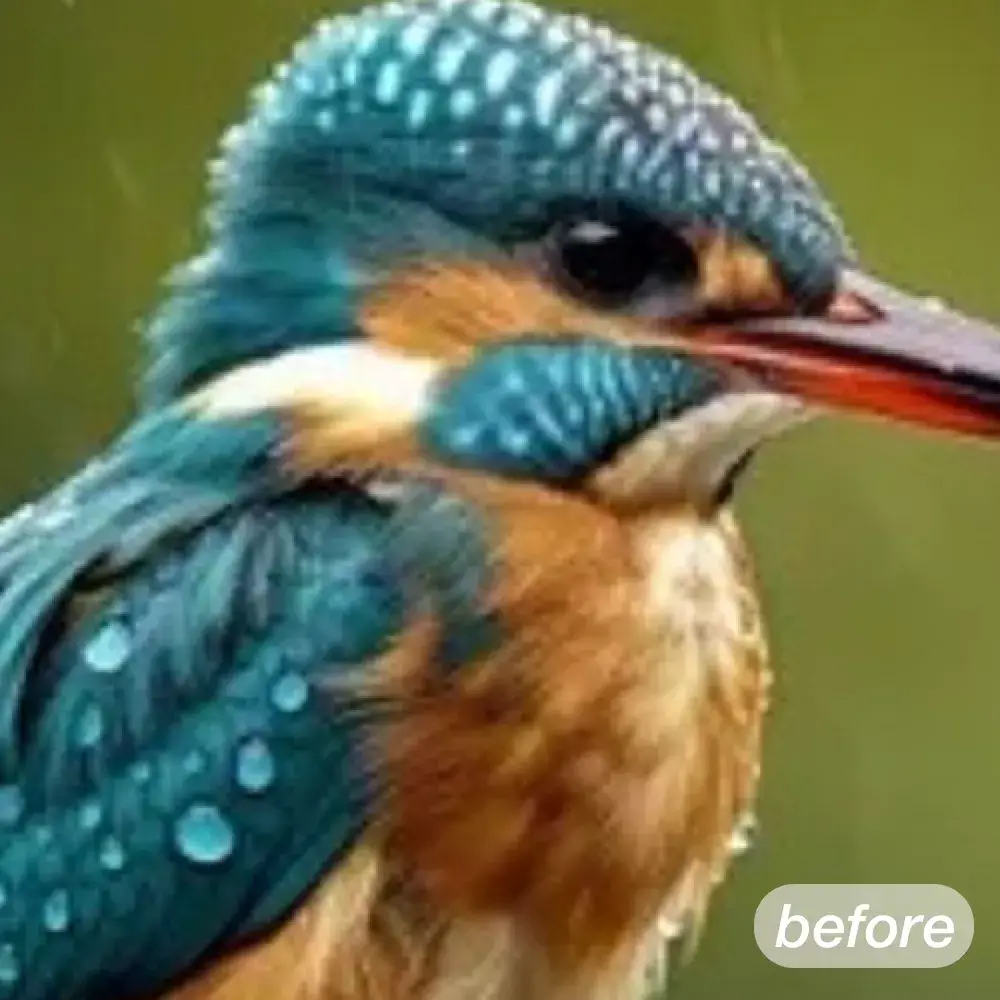 Before
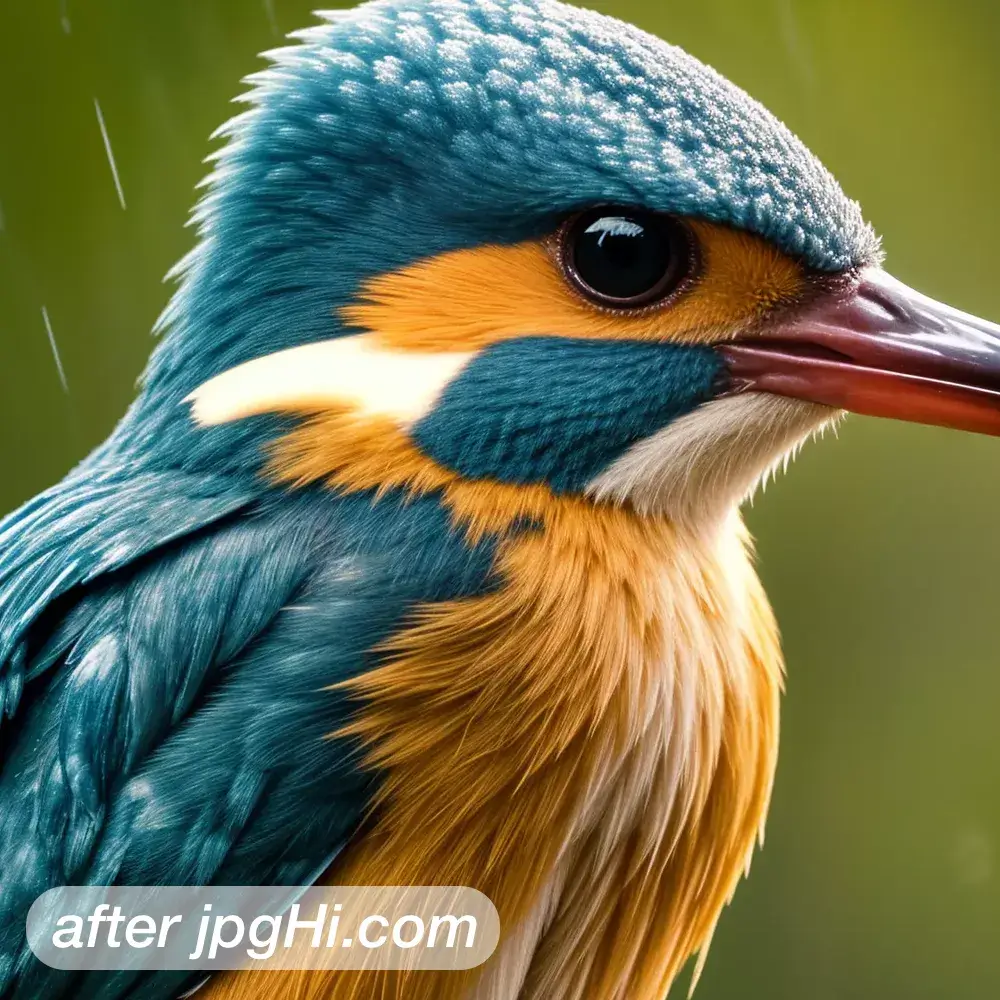 After
AfterWhy this image needs an upscale
AI can soften blocky edges and infer a clearer structure, but a heavily blurred source still needs an honest quality check.
Blur and pixelation are two different faults. Soft focus loses contrast in fine detail, while heavy JPEG compression leaves visible blocks. The repair route changes with the fault.
A simple AI upscaling workflow
- Identify the fault at zoom Study a one-to-one crop of a border and an area of skin. Square eight pixel blocks point to compression, while doubled outlines and smeared strands point to camera movement.
- Repair before enlarging Apply a light denoise pass to the compression blocks first, then enlarge at 2x. A large scale on a noisy source amplifies that noise into mottled texture you cannot remove later.
- Watch for brand new halos After processing, look along high contrast borders for a bright or dark rim. When a halo appears, reduce the scale or the detail strength rather than adding another round of sharpening.
Tips for a cleaner result
- Re-export instead of rescaling If a messaging app already shrank your picture, go back to that app and export it again at full size. Enlarging the shrunken thumbnail only enlarges the damage it carries.
- Stop when the evidence runs out With a heavily defocused source, accept a cleaner but simplified result instead of a hard scratchy version that invents crisp texture where no real texture existed.
Frequently asked questions
Can AI make a badly blurred photo sharp again?
It restores contrast and believable structure, which is often enough for sharing. Detail destroyed by defocus or a long exposure cannot come back exactly, so decide before you order a large print.
Why did the picture look worse after enlargement?
Sharpening multiplies the artefacts already inside the file: block edges, noise and ringing all grow stronger. Denoise gently first, enlarge once, and keep the final contrast boost small.