jpgHi Blog
Anime and illustration upscaling with AI
Illustrations need a different review than photographs. Strong outlines and flat colors make small mistakes easy to spot.
Last updated
Use only images you own or have permission to edit.
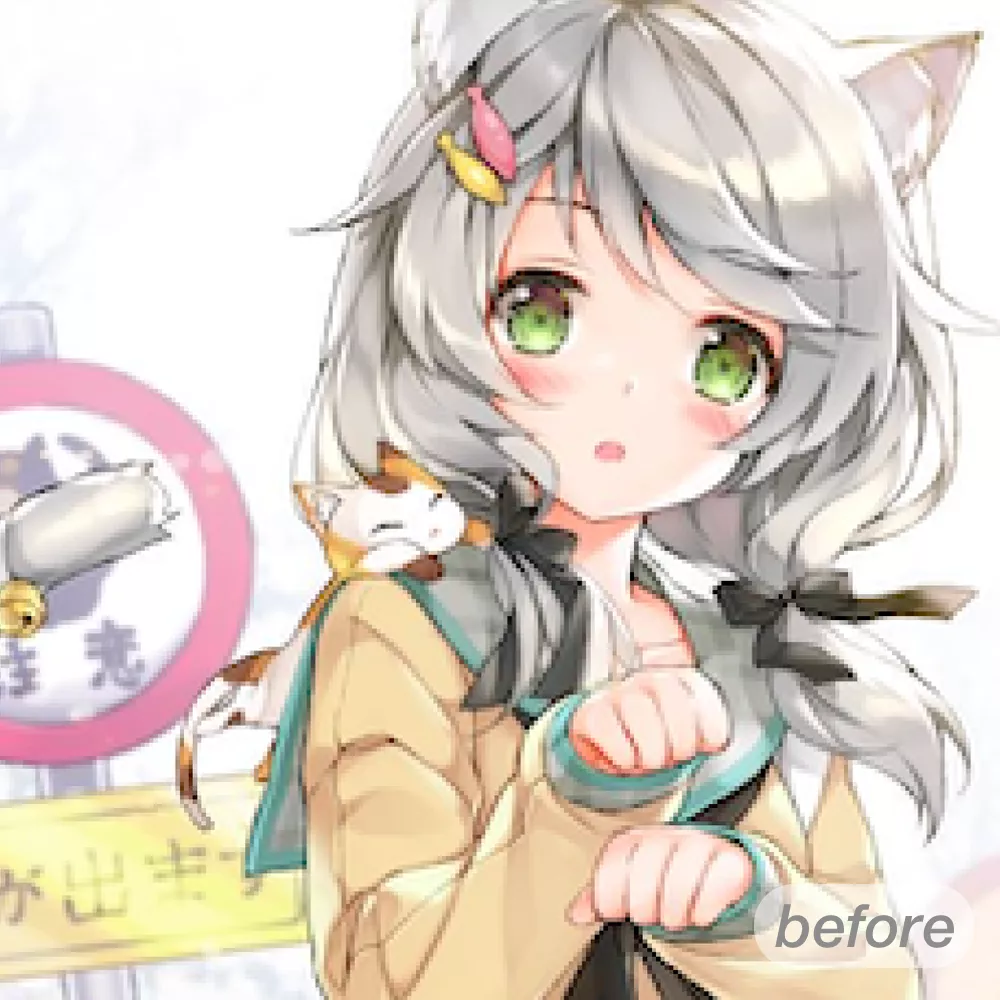 Before
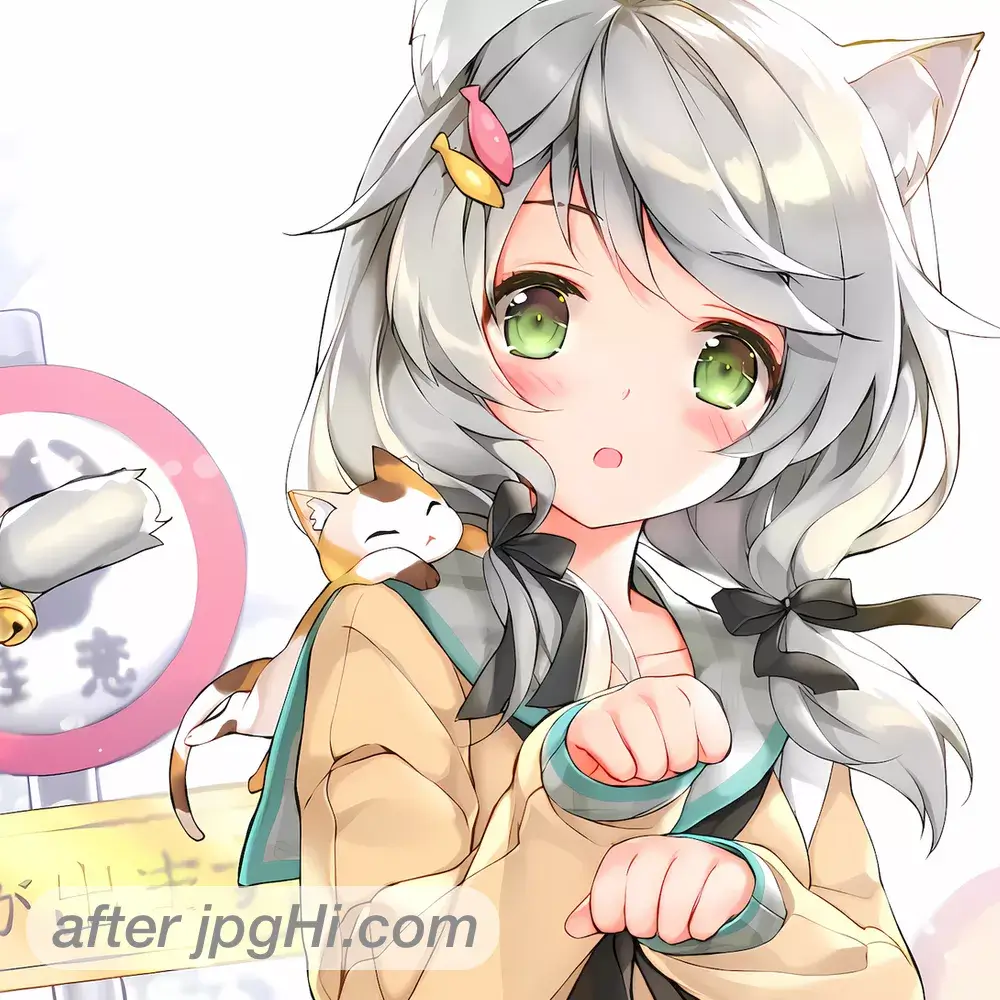 After
AfterWhy this image needs an upscale
Anime and illustration upscaling works best when line art, color boundaries, and small facial features remain crisp.
Line art punishes careless enlargement: outlines swell and become uneven, flat colours pick up speckles, and diagonal contours turn into stair steps. Screen artwork needs its own settings.
A simple AI upscaling workflow
- Measure the thinnest line Find the finest stroke in the drawing, such as an eyelash or a hatch mark, and enlarge that small crop first to see whether the line weight survives the chosen scale.
- Set the scale to the target Doubling is enough for a wallpaper or a phone case, while a 4x run suits a wall print. Enlarging past the display need only softens the crisp edges the drawing depends on.
- Sweep the flat colour fills Scan big colour areas for stray pixels, speckles or gradients that nobody painted, and study diagonal contours for stair steps before you export the finished panel.
Tips for a cleaner result
- Protect halftone patterns Halftone dots and light grain overlays can shimmer once they are scaled. Compare a textured panel against the source and drop the scale if the dot pattern starts to beat.
- Follow the line weight Compare a heavy outline with a thin inner line at the same magnification. A result that thickens the thin line or thins the outline changes the drawing style, so try another setting.
Frequently asked questions
Which scale suits anime and manga line art?
Choose by the final display: 2x for a large screen, 4x when the panel goes to print. Above that need the outlines start to swell and the artwork reads as if it were redrawn.
Why do flat colours look dirty after an AI upscale?
Speckles usually come from a source saved as JPEG or from a detail setting that is too strong. Export PNG next time, and test a milder setting on one panel before processing a whole chapter.